How to Use Keyword Search and Categories | Pak Legal Database
The new search system on Pak Legal Database provides powerful keyword search and category filtering to help you find exactly what you need. Follow this guide to master keyword search and category filters:
Step 1: Access the Search Page
Visit the judgments search page and you'll find a modern search interface with:
- Keyword Search - Search within case summaries and content
- Category Filter - Multi-select dropdown with search functionality
- Jurisdiction Filter - Filter by court jurisdiction
- Additional search fields for title, judge, and case number
Step 2: Using Keyword Search
The Keyword Search field searches through case summaries and judgment content. Enter precise keywords or phrases:
"bail exceptional circumstances""identification parade""delay in FIR""medical evidence""ocular testimony"
Tip: The keyword search uses intelligent matching to find relevant judgments even if your exact phrase appears in different contexts.
Step 3: Using Category Filters
Refine your results using the Category (Multi-select) filter:
- Click the
Select Categoriesbutton to open the dropdown - Use the search box inside the dropdown to quickly find categories
- Select multiple categories by checking the boxes
- The button will show how many categories you've selected
Available categories include:
- Criminal Law:
302 PPC,489-F,Acquittal,Bail after Arrest,Bail before Arrest - Family Law:
Dower,Custody,Maintenance,Khula,DMMA - Taxation & Finance:
Income Tax,Sales Tax,NAB,Corruption - Constitutional Law:
Fundamental Rights,Constitutional Petitions - And hundreds more across all areas of Pakistani law
Example: To find cases about bail with exceptional circumstances:
- Enter
"identification parde"in the Keyword Search field - Click
Select Categoriesand search for302 - Select relevant categories like
302 PPCorCriminal Law - Click
Searchto see filtered results within those bounds to make search easy and relevant
Step 4: Combining Keyword Search with Categories
For the most precise results, combine keyword search with category filters:
- Keyword Search finds judgments containing your search terms
- Category Filter narrows results to specific legal areas
- When both are used, you'll only see judgments that match your keywords and belong to your selected categories
Pro Tip: You can select multiple categories at once. The search will return judgments that match your keywords and belong to all of your selected categories (AND logic).
Step 5: Clearing Your Search
Each search field has a clear button (×) on the right side. Click it to quickly clear individual fields:
- Clear keyword search to start fresh
- Uncheck categories in the dropdown to remove them
- Or click
Searchwith empty fields to see all judgments
How to Use Full Judgment Text - Boolean Search | Pak Legal Database
The Full Judgment Text Boolean Search field allows you to search through the entire judgment text using powerful logical operators. Unlike keyword search (which searches summaries), boolean search scans every word of the judgment, making it perfect for deep legal research.
Step 1: Access Boolean Search
On the search page, locate the Full Judgment Text - Boolean Search field. This field is separate from the Keyword Search field and searches through complete judgment texts.
Important: You can use either Keyword Search or Boolean Search, but not both at the same time. Choose the one that best fits your research needs.
Step 2: Understanding Boolean Operators
Boolean operators must be typed in CAPITAL LETTERS (AND, OR, NOT). Here's how each operator works:
1 AND
Finds judgments where both terms appear in the full text.
Example: murder AND motive
→ Returns judgments that contain both "murder" and "motive" anywhere in the text.
2 OR
Finds judgments where either term appears.
Example: robbery OR theft
→ Shows judgments that mention either "robbery" or "theft" (or both).
3 NOT
Excludes judgments containing the specified term.
Example: maintenance NOT dower
→ Finds cases discussing maintenance but excludes any that mention dower.
4 ( ) Parentheses
Group terms to control the order of operations and create complex queries.
Example: appeal AND (acquittal OR conviction)
→ Finds appeals that mention either acquittal or conviction.
Example: (murder OR homicide) AND (bail OR release)
→ Finds cases about murder/homicide that also discuss bail/release.
5 " " Exact Phrase Search
Use double quotes to search for exact phrases as they appear in judgments.
Example: "benefit of doubt"
→ Matches the exact phrase "benefit of doubt" (not just individual words).
Example: "de novo" AND inquiry
→ Finds judgments containing the exact phrase "de novo" along with the word "inquiry".
6 * Wildcard
Use an asterisk to find all words starting with a root term.
Example: constitut*
→ Matches "constitution", "constitutional", "constitutes", "constitutionalist", etc.
Example: appel*
→ Matches "appeal", "appellant", "appellate", "appealed", etc.
Real-Life Examples
"fatal accident" AND (damages OR compensation)
→ Finds cases about fatal accidents that discuss either damages or compensation.service AND "de novo" AND (inquiry OR termination)
→ Finds service-related cases with "de novo" that mention inquiry or termination.custody NOT khula
→ Shows custody cases excluding those involving khula.bail* AND (exceptional OR circumstances) AND "granted"
→ Finds bail-related cases (bail, bailable, etc.) with exceptional circumstances where bail was granted.(302 OR "302 PPC") AND murder AND (convict* OR acquit*)
→ Finds Section 302 cases about murder with conviction or acquittal outcomes.
Tips for Effective Boolean Search
- Start Simple: Begin with basic AND/OR queries, then add complexity as needed.
- Use Quotes for Legal Terms: Exact phrases like "de novo", "res judicata", or "stare decisis" work best in quotes.
- Combine with Categories: Use category filters alongside boolean search for even more precise results.
- Test Your Query: If results are too broad, add more AND conditions. If too narrow, use more OR conditions.
- Wildcards Save Time: Use
*to catch variations (e.g.,appel*catches appeal, appellant, appellate).
How to Use Citation Search | Pak Legal Database
Citation Search allows you to find judgments by their legal citation format. This guide explains how to use the citation search fields effectively and when to use the comprehensive "Citation Search (All Journals)" tool.
Step 1: Using the Citation Search Fields
The citation search form has four fields:
- Journal (Required) - Select from the dropdown
- Year (Required) - Enter the year (e.g.,
2025) - Court (Optional) - Only use for PLD and PLJ
- Page (Required) - Enter the page number (e.g.,
1,435)
Important Warning: Only use the Court field for PLD and PLJ citations. For all other journals (SCMR, PCrLJ, MLD, etc.), the court field is automatically ignored because these citations don't include court names in their format. If you select a court for journals like SCMR or PCrLJ, your search may return no results or incorrect results.
Step 2: Search Examples
Example 1: PLD Citation
To search for PLD 2025 SC 1:
- Journal: Select
PLD - Year: Enter
2025 - Court: Select
Supreme Court(or leave as "Any Court" for broader results) - Page: Enter
1
Example 2: PLJ Citation
To search for PLJ 2010 LHC 123:
- Journal: Select
PLJ - Year: Enter
2010 - Court: Select
Lahore High Court - Page: Enter
123
Example 3: SCMR Citation (NO COURT)
To search for 2025 SCMR 435:
- Journal: Select
SCMR - Year: Enter
2025 - Court: Leave as
Any Court(DO NOT select a court - it will be ignored) - Page: Enter
435
Example 4: PCrLJ Citation (NO COURT)
To search for 2010 PCrLJ 123:
- Journal: Select
PCrLJ - Year: Enter
2010 - Court: Leave as
Any Court(DO NOT select a court) - Page: Enter
123
Step 3: Understanding Search Results
Citation search results are ranked by match quality:
- Exact Match: The citation exactly matches your search (highest priority)
- Starts With: The citation begins with your search terms
- Contains: The citation contains your search terms anywhere
Results are also prioritized to show human-readable names over entity IDs.
Step 4: When to Use "Citation Search (All Journals 1947-2026)"
Use the Comprehensive Citation Search Tool When:
- You cannot find a citation using the main search form
- You need to search across all journals from 1947 to 2026
- You want to download a judgment copy for court use
How to Access:
Click the "CITATION SEARCH (ALL JOURNALS 1947-2026)" button located below the main search form. This opens a separate comprehensive citation search tool.
Features of the Comprehensive Tool:
- Complete Coverage: Searches all legal journals from 1947 to 2026
- Downloadable Copies: Download judgment copies suitable for court use
- Slower but Thorough: This tool searches a larger database, so it may take longer but provides comprehensive results
- All Journals: Includes every journal in the database, not just the most common ones
When to Use Each Tool:
- Main Citation Search: Use for quick searches of common citations in recent years (faster results)
- Citation Search (All Journals): Use when you need comprehensive coverage, older citations, or downloadable copies for court
Step 5: Tips for Effective Citation Search
- Always include Journal, Year, and Page: These are the minimum required fields for accurate results
- Court field only for PLD/PLJ: Remember, court is only relevant for PLD and PLJ citations
- Use exact page numbers: Enter the exact page number from the citation
- Year format: Use 4-digit years (e.g.,
2025, not25) - If no results: Try the "Citation Search (All Journals)" tool for comprehensive coverage
- Partial searches: You can search with just Year and Journal to see all pages for that year/journal combination
Step 6: Available Journals
The citation search supports the following journals:
PLD - Pakistan Legal DecisionsPLJ - Pakistan Law JournalILR - Islamabad Law ReportsSCMR - Supreme Court Monthly ReviewPCrLJ - Pakistan Criminal Law JournalMLD - Monthly Law DigestCLC - Civil Law CasesYLR - Yearly Law ReportsSBLR - Sindh Bar Law ReportsCLD - Civil Law DigestPTD - Pakistan Tax DecisionsSCP - Supreme Court of PakistanPTCL - Pakistan Tax Cases LawNLR - National Law ReportsPCLJ - Pakistan Company Law JournalPCLD - Pakistan Company Law DigestLHC - Lahore High CourtPHC - Peshawar High CourtSHC - Sindh High CourtIHC - Islamabad High CourtUnreported - Unreported judgmentsStep 7: Troubleshooting
No Results Found?
- Check your citation format: Ensure you're using the correct format for the journal type
- Verify court field: If searching SCMR, PCrLJ, or other year-first journals, make sure court is set to "Any Court"
- Try without court: For PLD/PLJ, try leaving court as "Any Court" to broaden your search
- Use comprehensive tool: Click "Citation Search (All Journals 1947-2026)" for complete database coverage
Wrong Results?
- Ensure you've selected the correct journal from the dropdown
- Double-check the year format (4 digits)
- Verify the page number is correct
- For PLD/PLJ, ensure the court selection matches your citation
Summary: Quick Reference
For PLD/PLJ Citations: Court field is useful - select the appropriate court.
For All Other Journals: Leave court as "Any Court" - it will be ignored.
Can't Find a Citation? Use the "Citation Search (All Journals 1947-2026)" button for comprehensive coverage and downloadable copies. This tool searches all journals from 1947 to 2026 and is a little slower but has everything. If you can't find a citation or want a copy to use in court, this is the tool to use.
Obsidian 4.6 | Agentic Legal Research for Pakistan
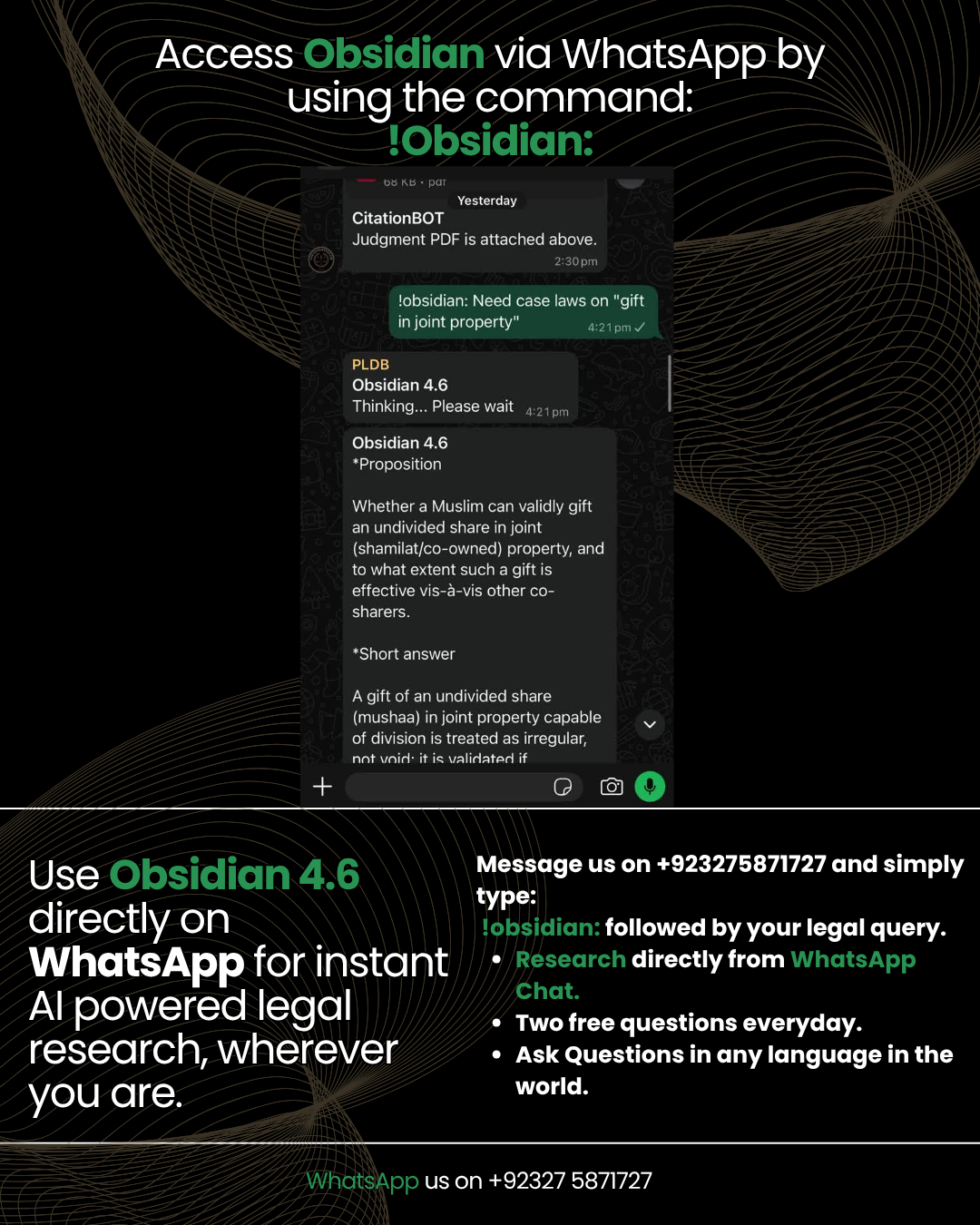
Obsidian AI 4.6 is Pak Legal Database's advanced legal research and analysis system, built on Grok 4.6 with a 500,000-token context window.
Obsidian now researches across 274,097 indexed documents. Its case law corpus includes 269,066 judgments, while its legislation layer contains 5,103 statutes. It is designed for lawyers, judges, researchers and students who need fast, source-grounded legal research using natural language.
How to Access It
Visit the Judgments page and click the
AI / chat icon to open Obsidian 4.6.
You can ask questions in ordinary language, legal terminology,
Urdu, Roman Urdu or Punjabi.
What Can It Do?
- Find relevant Pakistani case law across thousands of legal issues and jurisdictions
- Search legislation and analyse statutory provisions alongside the judgments interpreting them
- Read full judgments instead of relying only on summaries or headnotes
- Compare supporting, contrary and distinguishable precedents before forming its answer
- Verify citations against PLDB's legal corpus and flag authorities that cannot be independently confirmed
- Analyse uploaded documents together with relevant case law and legislation
- Summarize lengthy judgments and explain the principles, reasoning and outcome
- Link directly to judgment PDFs, including relevant pages where available
How Obsidian Searches
Obsidian does not simply search a collection of case summaries. Its research system can work across structured PostgreSQL records, vector indexes, full judgment text, original PDFs and legislation .
This allows the system to combine exact legal retrieval with semantic search, identify the strongest authorities, read the underlying judgment where necessary and then form its answer from the source material it has found.
Full Judgments, Not Just Summaries
A case summary is useful for discovering a judgment, but serious legal research requires the underlying authority. Obsidian can examine the full judgment before relying on it in its final analysis.
Where a PDF is available, cited authorities remain connected to the original judgment. Relevant sources can also take you directly to the page containing the material relied upon.
Citation Verification
One of the biggest risks when using general AI for legal research is a fabricated or incorrect citation. Obsidian includes a citation-verification stage designed to check authorities against PLDB's underlying corpus before they are treated as verified.
- Checks whether the judgment actually exists
- Checks whether the citation appears in PLDB's records
- Matches the citation with the correct judgment
- Connects the authority back to the underlying source where available
- Can mark an authority as "not verified in corpus" where independent confirmation is unavailable
Supporting and Contrary Precedents
Good legal research does not stop after finding cases that support your position. Obsidian can also search for contrary and distinguishable judgments and explain why a different result was reached.
This allows the final answer to show both the rule and its limits rather than presenting only one side of the law.
Visible Research Steps
While Obsidian is working, the Thinking panel can show the research operations being carried out, including searches across case law, legislation and alternative formulations of the legal issue.
This gives users visibility into the research process, such as searching the corpus, retrieving statutes, locating additional precedents and checking contrary authorities before the final answer is produced.
Fast vs High
Obsidian gives users two research modes depending on how much depth the question requires.
- Fast: The recommended mode for roughly 90% of everyday legal research. It is quick, focused and capable of finding cases, statutes, citations, contrary authorities and source-grounded answers without a lengthy wait.
- High: Slower by design, but intended for difficult or research-heavy matters. It carries out a broader research process and generally produces longer, richer and more comprehensive answers .
Start with Fast for normal research. Use High where the matter involves complex legal questions, multiple competing precedents, detailed statutory interpretation or where you want the deepest available analysis.
500K Context Window
Obsidian 4.6 operates with a 500,000-token context window. This gives the model room to work with large judgments, statutes, pleadings, contracts and multiple documents within the same research context.
This becomes particularly useful where the answer depends on comparing several lengthy authorities rather than retrieving one isolated paragraph.
🇵🇰 Built Specifically for Pakistani Legal Research
Obsidian is grounded in PLDB's Pakistani legal corpus. The system now researches across 274,097 indexed documents, including a case law corpus of 269,066 judgments, alongside a legislation layer containing 5,103 statutes.
Its purpose is not to return general web results, but to help users locate, verify and analyse Pakistani legal authorities contained within the platform.
⚠️ What to Do If It Doesn't Respond Properly?
AI research systems can occasionally produce an incomplete answer, retrieve an unsuitable authority or lose focus during a very long conversation.
- If the answer appears repetitive or off-topic, click the refresh / new chat option and ask the question again in a fresh session.
- Try making the query more specific by including the relevant provision, jurisdiction, procedural stage or important facts.
- For difficult questions, try High mode if Fast does not provide enough depth.
- If the interface itself appears stuck, perform a hard refresh of your browser and reopen Obsidian.
🧠 AI Hallucinations: What You Should Know
No large language model is completely immune from hallucinations or incorrect interpretation. An AI system may misunderstand a question, retrieve an unsuitable authority or draw an incorrect conclusion from genuine source material.
Obsidian is designed to reduce these risks through hybrid retrieval, full-judgment access, citation verification and source linking . Where a citation cannot be independently confirmed from the corpus, the system can identify it as unverified rather than silently treating it as confirmed.
However, confirming that a judgment exists does not automatically guarantee that every interpretation of that judgment is correct. For professional legal work, always review the underlying judgment or statutory provision before relying upon it in court, formal advice or legal drafting.
Obsidian 4.6 is a powerful legal research tool designed to substantially accelerate research, but it remains an aid to professional judgment, not a replacement for it.
How to Use Sanction Search | Pak Legal Database
The Sanction Search tool allows you to screen individuals, companies, organizations, and entities against global sanctions and watchlists. Search across 4.229 million entities from 316 datasets covering sanctions, watchlists, PEPs (Politically Exposed Persons), and compliance databases worldwide to ensure AML/KYC compliance.
Step 1: Entity Search
The Entity Search field searches through names, aliases, and identifiers simultaneously. Enter any of the following:
- Personal names:
John Smith,Nawaz Sharif - Company names:
Huawei,Bank Melli - Identifiers: Passport numbers, company registration numbers, or other public identifiers
Tip: The search automatically matches partial names and searches aliases, so Osama will find Usama bin Ladin if listed as an alias.
Step 2: Filter by Dataset
Use the Dataset dropdown to filter results by specific sanctions lists or watchlists:
- Click the dropdown to see all available datasets
- Use the search box inside the dropdown to quickly find specific datasets
- Select a dataset to filter results to that specific list
Pakistan-Specific Datasets:
Pakistan NACTA Proscribed Persons- Official proscribed persons listPakistan NAB Mega Cases- National Accountability Bureau mega casesPakistan NAB Plea Bargain Cases- NAB plea bargain recordsPakistan FIA Red Book 2025- Federal Investigation Agency most wanted
Global Coverage: UN Security Council, US OFAC SDN, EU Sanctions, UK FCDO, INTERPOL Red Notices, World Bank Debarments, and regulatory lists from over 100 countries.
Step 3: Filter by Entity Type
Use the Entity Type dropdown to narrow results by entity category:
- Select from types like
Person,Organization,Vessel,Aircraft, etc. - Use the search box to quickly find specific types
- Filter helps narrow results when searching common names
Step 4: Advanced Filters
Use additional filters for more precise results:
- Country: Filter by nationality or country mentions (e.g.,
Pakistan,USA,Russia) - Date of Birth: Filter by birth date in
YYYY-MM-DDorYYYYformat
Step 5: Understanding Results
Each result shows:
- Status:
SANCTIONED(red) orNOT SANCTIONED(green) - Entity Type: Person, Organization, etc.
- Datasets: Which sanctions lists or watchlists the entity appears in
- Country: Associated countries
- Date of Birth: If available for individuals
Note: PEPs (Politically Exposed Persons) from Wikidata are marked as "NOT SANCTIONED" as they are reference data, not sanctions lists.
Real-Life Examples
Nawaz Sharifin Entity Search
→ Finds all records matching this name across all datasets, including aliases.Huaweiwith Dataset:US OFAC SDN
→ Returns only Huawei-related entries from the US OFAC sanctions list.- Country:
Pakistanwith Dataset:Pakistan NACTA Proscribed Persons
→ Shows all proscribed persons from Pakistan's official NACTA list. - Entity Type:
Organizationwith Country:Russia
→ Lists all sanctioned Russian organizations across all datasets.
Database Coverage
- Total Entities: 4.229 million+ records, updated daily
- Datasets: 316 unique global sanctions, watchlists, PEPs, and compliance databases
- Entity Types: 30 different categories including persons, organizations, vessels, and aircraft
- Jurisdictions: US OFAC, UN Security Council, EU, UK FCDO/HMT, Canada, Switzerland, INTERPOL, World Bank, and regulatory lists from over 100 countries
- Use Cases: AML/KYC compliance, financial due diligence, corporate risk management, sanctions screening
How to Use the Legal Drafts Section on Pak Legal Database
The Legal Drafts section provides downloadable templates for frequently used legal documents in Pakistan. These drafts follow official court formats and can be edited directly in your preferred software.
📂 File Types
- English Drafts: Microsoft Word files (
.docx) - Urdu Drafts: InPage files (
.inp)
⚙️ What You’ll Need
Microsoft Wordinstalled to open and edit English draftsInPagesoftware installed to work with Urdu templates- Paper size set to Legal with standard court margins
✍️ How to Use a Draft
- Choose your desired legal draft from the list
- Click Download and open the file in Word or InPage
- Replace the
_______placeholders with your facts and case details - Review for accuracy and print when ready
💡 Pro Tip
Using drafts saves time and avoids delays — no need to wait for a typist. These are standardized formats accepted in courts across Pakistan.
🗂️ Notes
- All drafts are formatted for Legal-size paper
- Margins are set according to official court standards
- Each draft follows the standardized format used in Pakistani courts
How to Use the Legislation Section on Pak Legal Database
The Legislation section gives you access to Acts, Ordinances, Rules, and Regulations from all jurisdictions in Pakistan — all available as downloadable PDF files.
🔍 Search and Filter
- Use the search bar to find legislation by keyword, title, or description
- Use the Jurisdiction Filter (Federal, Punjab, Sindh, KPK, Balochistan, National Assembly) to narrow your results
- Each law card shows its jurisdiction, promulgation date, and archive status
📄 File Format
- All legislation is available as
.pdffiles - You can view, download, or print them as needed
- Files are named clearly to reflect the title and year of the law
🗂️ Notes
- All documents are in PDF format.
- This page includes 4,500+ legislative documents from across Pakistan.
How to Use the Case Diary on Pak Legal Database
The Case Diary is a smart, calendar-based tool designed for legal professionals to organize and track upcoming cases, deadlines, notes, and related files. You can add entries with custom titles, descriptions, and color-coded categories — or create your own labels and colors for better visual clarity. Easily switch between weekly and monthly views, and securely upload documents (PDF, DOC, TXT) up to 2MB per file — all saved to your account for easy access anytime.
📅 Key Features
- Create and manage case entries using the Add New Entry option
- Select from preset case types (e.g., Criminal, Civil) or
Create Newtags with your own color codes - Switch between Monthly and Weekly calendar views
- Upload related documents (
.pdf,.doc,.txt) — max 2MB per file - Color-coded entries make it easy to distinguish between different case types or priorities
🗂️ Notes
- Your data is stored securely in your account and editable at any time
- Create unlimited custom colors and categories to suit your workflow
- Keep documents under 2MB to ensure smooth and quick uploads
How to Use the Legacy Search | Pak Legal Database
The legacy search page on Pak Legal Database is designed for precise legal research. Follow this guide to search like a proon our old UI:
Step 1: Access the Judgments Page
Visit paklegaldatabase.com/judgements and you'll find:
- Keyword search bar
- Citation search bar
- Category & jurisdiction filters
Step 2: Use Keyword Search for Legal Concepts
Enter precise keywords to search for exact text:
"identification parade""delay in FIR""medical evidence""ocular testimony"
Step 3: Apply Category Filters
You can refine your results using more than 400 filters, examples include:
- Criminal Law:
302 PPC,489-F,Acquittal,Bail after Arrest - Family Law:
Dower,Custody,Maintenance, Khula, DMMA, etc - Taxation & Finance:
Income Tax,Sales Tax,NAB,Corruption
📌 Example: Select 302 PPC and Acquittal, then search for "identification parade".
Step 4: Use the Citation Search Tool
The simplest way to search by citation is to use the dedicated Citation Search Tool:
🔎 Open Citation Search ToolOn this page, you can:
- Select the Journal (from dropdown)
- Select the Court (from dropdown)
- Enter the Page Number
- Choose the Year
Our intelligent Python-powered backend will locate the relevant judgment for you automatically.
📌 Note: The Advanced Search section also includes a citation field, but it is limited to data between 1947–2015 only. Use the tool above for full coverage up to 2025.
Step 5: Judgment Page Citation Search (Manual Input)
When using the citation bar directly on legacy search, ensure the format is exact:
Correct citation formats:
PLD 2010 SC 123PLJ 2010 SC 1232025 LHC 1232010 SCMR 123
❌ Avoid:
S.C.M.R,P.Cr.R.LJ,P.L.DS C M RorP L Dwith extra spaces- Dashes, dots, or city abbreviations like
lhr,sind,bal
✅ Instead, use: SCMR, PCrLJ, PLC CS (no dots, dashes or extra spaces)
📌 Note: Use full city names like Sindh, Lahore, Karachi — not abbreviations like Sind., Lhr, Khi.
How to Use the old Legacy Advanced Search on Pak Legal Database
Advanced Search allows you to serach keyword through entire judgment text and perform complex legal research using logical commands. You can combine keywords, phrases, and filters to get highly specific results.
📌 Real-Life Examples
fatal accident AND damages OR compensation
→ Finds cases mentioning fatal accidents and either damages or compensation.service AND "de novo" AND inquiry OR termination
→ Finds service-related cases where "de novo" inquiries or termination are discussed.custody NOT khula
→ Shows custody-related cases excluding those that involve khula.
✅ Supported Commands (must be in caps lock/capital)
1️⃣ AND
Returns results that include both terms.
Example: murder AND motive will return results where both "murder" and "motive" appear.
2️⃣ OR
Returns results that include either term.
Example: robbery OR theft will show judgments that mention either "robbery" or "theft".
3️⃣ NOT
Excludes results containing the second term.
Example: maintenance NOT dower finds cases discussing maintenance but not dower.
4️⃣ ( )
Group keywords and apply logic inside brackets.
Example: appeal AND (acquittal OR conviction) finds cases involving appeals with either outcome.
5️⃣ " "
Use double quotes for exact phrase search.
Example: "benefit of doubt" matches that precise phrase.
6️⃣ *
Wildcard to find all words starting with a root.
Example: constitut* matches "constitution", "constitutional", "constitutes", etc.
🗂️ Notes
- Judgments are locked between 1955–2016
- Use the Judgments Page for real-time judgments after 2016.
- Total Cases: 225,000+
- Jurisdictions: SC, GB, AJK, Islamabad, Lahore, Karachi, Peshawar, Quetta, and Tribunals and all high court of Pakistan.
How can we help?
Choose a service below and WhatsApp will open with the correct command ready for you.